Wednesday, February 1, 2017

Tuesday, January 31, 2017
Home
If you have been looking for a simple language that makes it possible to teach complete beginners then you might be pleased to meet Small Basic. It is, as its name, suggests a small and simple language but it also has lots of rewards built in to keep the beginner's interest.
Modern languages are very powerful, but have you ever tried to teach one to a complete beginner? Before you can write a single program there is so much to master. You find yourself having to explain complicated and sophisticated ideas when you would really prefer to concentrate on the more basic ideas of programming.
You don't need objects, data typing or anything complicated to get in the way of learning the essence of programming. This sort of simplicity was the original intent of BASIC which was so successful at getting people to program that it grew well beyond its initial simplicity. Small Basic is almost a re-creation of this earlier form of Basic.
If you know any form of Basic, be prepared to be surprised at what has been left in and what has been left out. Try to keep in mind that the objective is not to recreate any existing form of Basic - QBasic or the original Visual Basic - but to put together something that is easy for beginners to learn. This said, there are some decisions that you might want to take issue with - but let's find out about Small Basic first.
Small Basic is easy to download and easy to install - as long you you have Windows XP or later and the .NET 3.5 Framework. Yes Small Basic is a .NET managed language, but don't imagine for a second that it is a cut down version of Visual Basic - it isn't.
Hello Small Basic
When you first run Small Basic what you will discover is that part of making it easy to use for beginners is the IDE. This presents a simple editor window where you can type commands and issue a the Run command. There is no distinction between run and debug to confuse the beginner - you write your program code and then run it. As you type the IDE prompts with possible completions of what you type and a side panel provides documentation on the command - Intellisense style.The first important thing to know about Small Basic is that it allows you to use objects but not to create them.
This is very reasonable because beginners often have difficulty with the creation of objects, especially in class based languages, but they have less difficulty with the idea of using an object with properties and methods. Once the idea of an object has sunk in then they are ready to ask the question of how to extend the language by creating new objects - they are also more than ready to move on to a more sophisticated language.
To see this in action, and to see how simple Small Basic is let's write Hello World. To do this you do need to know a little about the Small Basic output window - the TextWindow object.
If you start to type T e x t ... then you can see the possible choices appear and you eventually get to TextWindow

Next you can select the method you require - WriteLine - and enter the string to print. The entire program is just the single line:
TextWindow.WriteLine("Hello World")No curly brackets and no semicolons to be seen.
At the far right of the window a summary of the object and its method are presented to make sure you don't have to rush of and consult a manual.
Running the program is just as easy - press F5 or click the Run icon. In this case a command console opens and you see the printed message. There is also an End Program button that appears in the IDE just in case things don't work out.
Variables
So far so good but what do you need to tell the beginner to make progress in Small Basic?The first thing they need to master is the idea of a variable and a value. In Small Basic this is stripped down to its bare essentials. There are no data types apart from numbers and strings and these are automatically converted where possible. This means you don't have to draw the beginners attention to the difference between 1 and "1" until they are ready to notice it.
There is also no need to worry about anything beyond simple value assignment - there are no reference or pointer types. All you can do is store a value in a variable. You don't even have to declare variables before using them. Using a variable is enough of a sign that you want to create some storage for a value.
So you can just write
myVariable=1
myString="Hello World"
The next simplification might have some programmer worried - all variables are global and they persist for the lifetime of the program. This may be worrying but it means that the beginner doesn't have to worry about scope, shadowing or lifetimes. It is simple and it works for small programs. Once the beginner has the concept of variable, value and assignment well mastered then they can be introduced to scope and other matters but in some more appropriate language.
Control
The second issue in teaching a programming language is to deal with the flow of control and here I have a problem with Small Basic - it has labels and Goto. It also uses the Goto in many of its examples. The problem is that the Goto isn't simple and it doesn't carry over into other languages. Unlike the other simplifications of Small Basic that have to be extended when the beginner moves to a modern and more advanced language the Goto has to excised, removed, forgotten and generally trampled on. Why teach something so early that is unnecessary and that has to be unlearned?There is one tiny excuse for including Goto and this is to teach the very primitive control structures that are found in the machine code and hence assembly language. Perhaps there is value in teaching how to create a loop and a conditional using a jump or Goto - but not to a complete beginner.
If you are using Small Basic to teach some one new and impressionable make sure to avoid the Goto at all costs.
So apart from the Goto and the label, of which no more will be said, what other control structures are there?
The good news is that the control structures are close to the original Basic forms which means they are also closer to the usual English expression of the same idea than the usual curly bracket equivalents.
The If statement takes the form:
if (condition) Then
 statements
Else
statementsEndifWhere you can leave out the Else part if you want to create a simpler
if (condition) then
  statements
Endif
Small Basic also supports the usual two of the three structured programming loops - the for and the while.
The for loop takes the easier to use restricted form introduced by Basic:
For index=start To Stop Step increment
  statements
EndFor
Of course you can leave out the Step part of the instruction to create a simpler For loop that increments the index by one each time. For example:
For i=1 To 10
  TextWindow.WriteLine(i)
EndFor
This is so much easier to explain to a beginner than the C-style for loop
for(var i=1;i<11;i++){...}which is much more general than a simple enumeration loop needs to be and reads like an arcane magical expression than something meaningful.
Notice that the For loop doesn't end with the traditional Next statement but with an arguably more consistent EndFor. You can argue about this for hours. Next has the advantage of being an active instruction in the beginners minds at least in that it says "get the next value of the index and start the loop again" where the "Endfor" is just a terminating punctuation in the general syntax of the language - does it End the For in any active sense? No.
The conditional loop is supported in Small Basic via the While loop:
While(condition)
 statements
EndWhile
This provides a loop with an exit point at the start and so the loop can be used to create zero or more alterations.
You can program everything you want to using nothing but the For and While loop - in fact you really only need the While loop as it combined with the If statement are provably sufficient for any program. However it would be better if Small Basic also supported an Until loop. An Until loop has its exit point at the end and can be used to create one or more iterations. The distinction between While and Until is a subtle one however and something that can best be left for later. The big problem is that without and Until or without a Break statement the temptation is to use the Goto to create more complex loops - this is not good.

Subroutines
Small Basic does have Subroutines and they are defined in a very simple way:
Sub name
 statements
EndSub
To call a subroutine you simply use its name followed by parenthesis e.g.
MySub()So far so very standard and expected - now for the surprise.
You can't use parameters in a user defined subroutine. That is you can't define a subroutine like:
Sub Add(a,b)
c=a+b
EndSub
what is more Subroutines are "proper" subroutines and not functions - they have no return value. So even if you could write Add(a,b) there would be no way to return c as a result.
So subroutines have no parameters and no return value - how do you make use of them?
The simple answer goes back to the observation that all variables are global and in scope within every subroutine. That is if you want to write an Add subroutine you can:
Sub Add
 c=a+b
EndSub
but a and b have to exist within the program before the subroutine is called and c will be created as a global variable by the subroutine, assuming it doesn't already exist.
This is a very simple approach to subroutines and it closely follows the early Basic Gosub construct which also didn't have parameters or return values. It does serve to introduce the idea of modular construction but there are some problems.
The first is that methods attached to supplied objects do have parameters. For example,
TextWindow.WriteLine(MyString)so this makes it necessary to at least introduce parameters if only in a limited way. More importantly without the ability to pass parameters and obtain return values subroutines don't really have the power that is needed to convince the beginner that they are a really good idea. In short you better prepare a good answer to "why use a subroutine when all the variables are global."
Data Structures
The only data structures that Small Basic has are the string, which is supported via a Text object for string manipulation and a one or two dimensional array. You don't have to declare the array you simply use it e.g.MyArray[10]=3creates MyArray and stores 3 into the 10th element. Arrays are one based which again is a simplification for the beginner. You can also create 2D arrays by simply using 2D indexing.
MyArray[3][10]=5What is surprising about Small Basic arrays is that they are in fact associative arrays in the style of JavaScript. That is you can use:
MyArray["Name"]="Small Basic"This makes the Small Basic array a much more powerful data structure than it first appears to be. However notice that as there are no user defined objects and there are no references you cannot use the array to build other more complex data types. That is an array cannot contain a reference to another data structure. However an array can store another array - but only as a value copy. For example:
b[10]=3
test["data"]=b
b[10]=4
TextWindow.WriteLine( test["data"][10])
Displays 3 not 4.
This is probably an essential requirement to keep things simple for the beginner. Value assignment is the right level to start with but it is worth noting that even beginners can ask difficult questions when exposed to this sort of language facility!
Graphics and Events
Yes - Events! This many be a beginners language but it supports events. You can write subroutines that can be bound to events such as OnMouseDown or a Timer event.All of these events occur within the GraphicsWindow object which is a more advanced version of the TextWindow. You can use it and the methods it provides to draw on the screen and create interactive graphics with the help of events.
At this point you might be wondering how all this can work given the fact that subroutines don't have parameters or return values? The event data, such as the mouse position, is made available to the event handler via properties on the GraphicsWindow object.
For example
GraphicsWindow.MouseMove=MyEventHandler
Sub MyEventHandler
 x=GraphicsWindow.MouseX
 y=GraphicsWindow.MouseY
 and so on
EndSub
After the user has mastered the idea of variables and flow of control the next thing worth leaning is event handling. Asynchronous programming is the norm not the exception and the fact that Small Basic has such a simple and easy to use implementation is a huge plus. This does seem to be the right way to do things.
The Turtle
The easy access to graphics makes it possible for the complete beginner to do things that in other languages would take a lot more work. However as well as the GraphicsWindow object there is also the TurtleObject - yes you can pretend that Small Basic is Logo, but without the difficult to swallow emphasis on recursion.If you want to motivate the use of Small Basic with small children then turtle graphics are a good way to get started and it's only a small step to the full GraphicsWindow.
Extensions
The philosophy of Small Basic is to keep it simple and to resist the temptation to expand the language to the point where it becomes too complex for the beginner. However the one area where the language does expand fairly freely is in the form of extensions. These can be written in any .NET language and they are very easy to create. They work by adding new objects with methods and properties of the language - so in this sense they don't modify the language. The user simply has to learn about the new object and what it can do for them.There are currently extensions which allow you to create Windows Forms, do math , use a Joystick and so on. If you have an idea for an extension then it shouldn't take long to implement and you can add it to the library.
Is Small Basic Right For the Beginner?
Small Basic's biggest problem is the fact that it not only has labels and the Goto but the introductory documentation makes use of this facility. If you avoid mentioning that it exists and help your student to learn how to put the flow of control together without it then it is a good introduction. The only real alternative to the Small Basic approach are the visual blocks based languages such as Scratch. These are easy to lean but they put off the task of learning to convert an algorithm to text. Small Basic confronts this task head on and it is simple enough and rewarding enough to work.Home
Computer
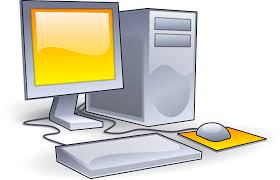
Computer is an electronic device which is capable of receiving information (data) in a particular form and of performing a sequence of operations in accordance with a predetermined but variable set of instructions or program to produce a result in the form of information or signals.
Computer is an electronic device which is capable of receiving information (data) in a particular form and of performing a sequence of operations in accordance with a predetermined but variable set of instructions or program to produce a result in the form of information or signals.
Subscribe to:
Comments (Atom)